How Do I Use the Quick Build Tool?
Use the Quick Build Tool to Speed up Creating Designs
The keyboard key `~ toggles the Quick Build Tool ( ) on and off in the Design -> Tools tab. This tool lets you draw your common parts straight onto your design without returning to the Parts catalog. Click and drag to draw duct with the tool, or click on a part to open a hover menu suggesting how to change or add parts to that part. The hover menu will be activated if you mouse over the menu, or will be dismissed if you move your mouse away from it.
The Quick Build Tool Can Create Branches
If you begin drawing anywhere on a length of flexible duct, the tool will automatically add a duct connector and continue drawing from the added part.
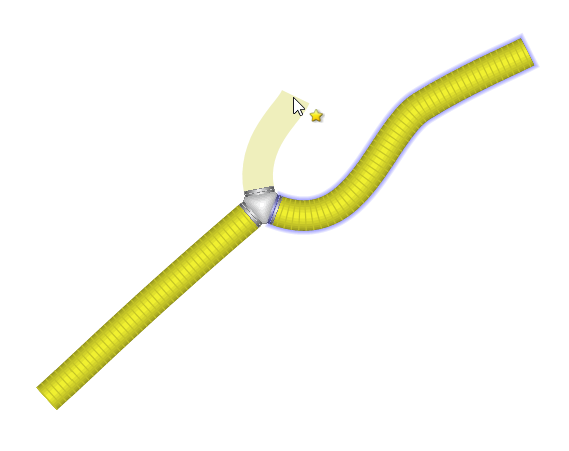
If you instead begin drawing on a duct connector such as a Y-piece, the program will try to replace it with a part with enough connection points, such as a double branch take off, and continue drawing from that part.
The Quick Build Tool Can Replace or Resize Parts
Once you have finished drawing a branch, or if you simply click on any part, the tool will show you a selection of parts that are valid replacements for that part on the hover menu. Make a selection from the menu if you want to change the part used.
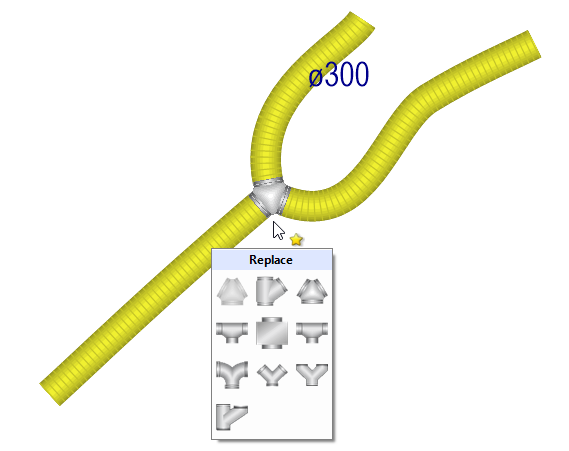
The Quick Build Tool Can Add New Parts
If you use the tool to click on the connection point on a part, then the tool will show you a selection of parts that can connect to that connection point. Choose which part you want to add from the menu.
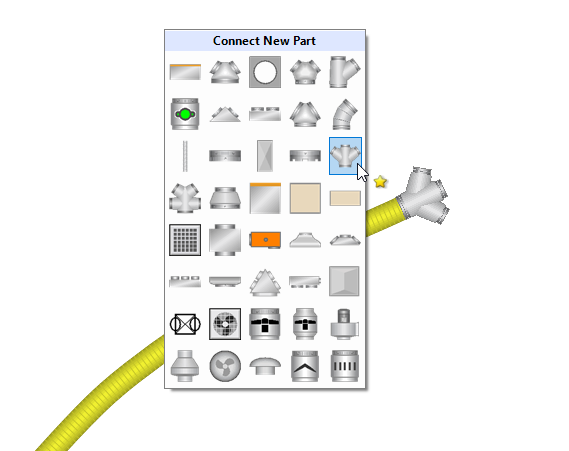
The tool will present a selection based on what parts have already been used in your design so far, which parts you have used recently, which parts are in your catalog favourites, and which parts are most applicable for that situation. As you use the tool it will adapt to the parts you select most often.